
How to Set Up an SPF Record at FORPSI
Prerequisites
You need an active DNS hosting at FORPSI and access to the admin panel. Before adding an SPF record, identify which services send email from your domain — see How to Create an SPF Record Step by Step. If you're unfamiliar with SPF, start with What is an SPF Record and Why Do You Need One.
Step 1: Log in to the admin panel
Open admin.forpsi.com and log in. You will see the Account administration page with an overview of your services. In the left menu under Services administration, click DNS-hosting.
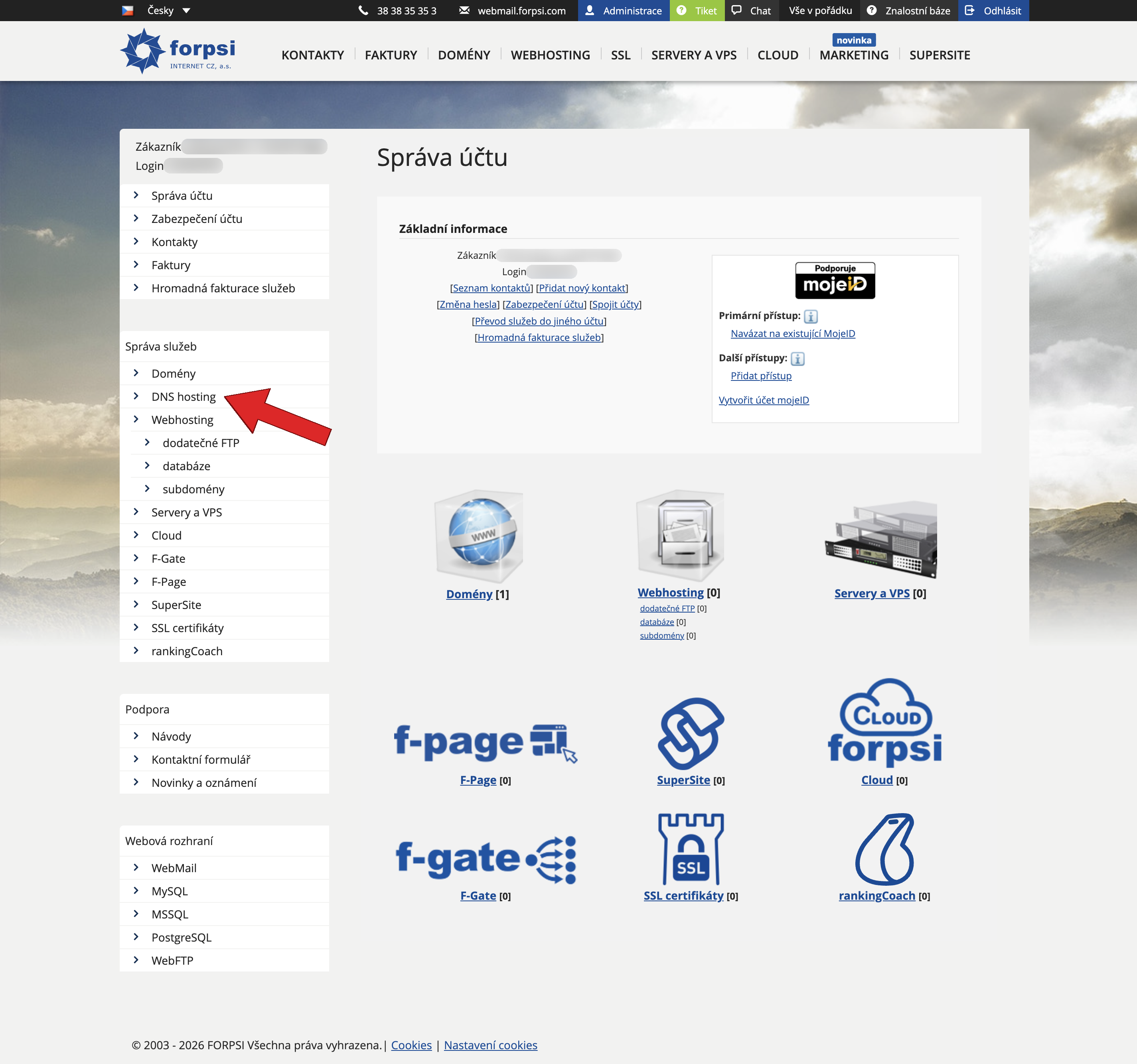 Source: https://admin.forpsi.com/
Step 2: Select your domain
On the DNS hosting page, click the order number next to the domain you want to add the SPF record to.
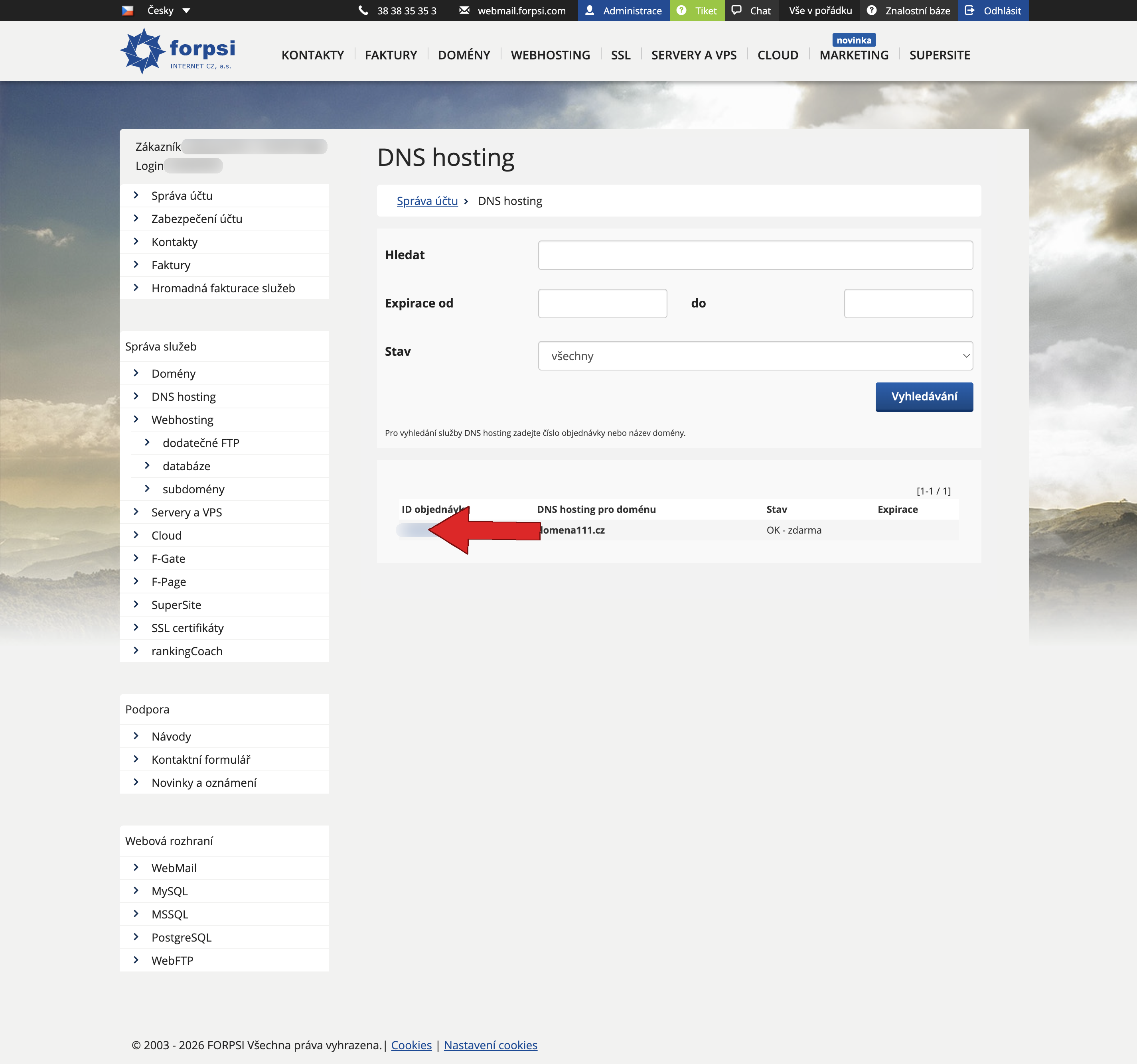 Source: https://admin.forpsi.com/domain-dns/dns-list.php
Step 3: Go to DNS record editing
On the DNS hosting service detail page, click the Edit DNS records link next to Primary DNS.
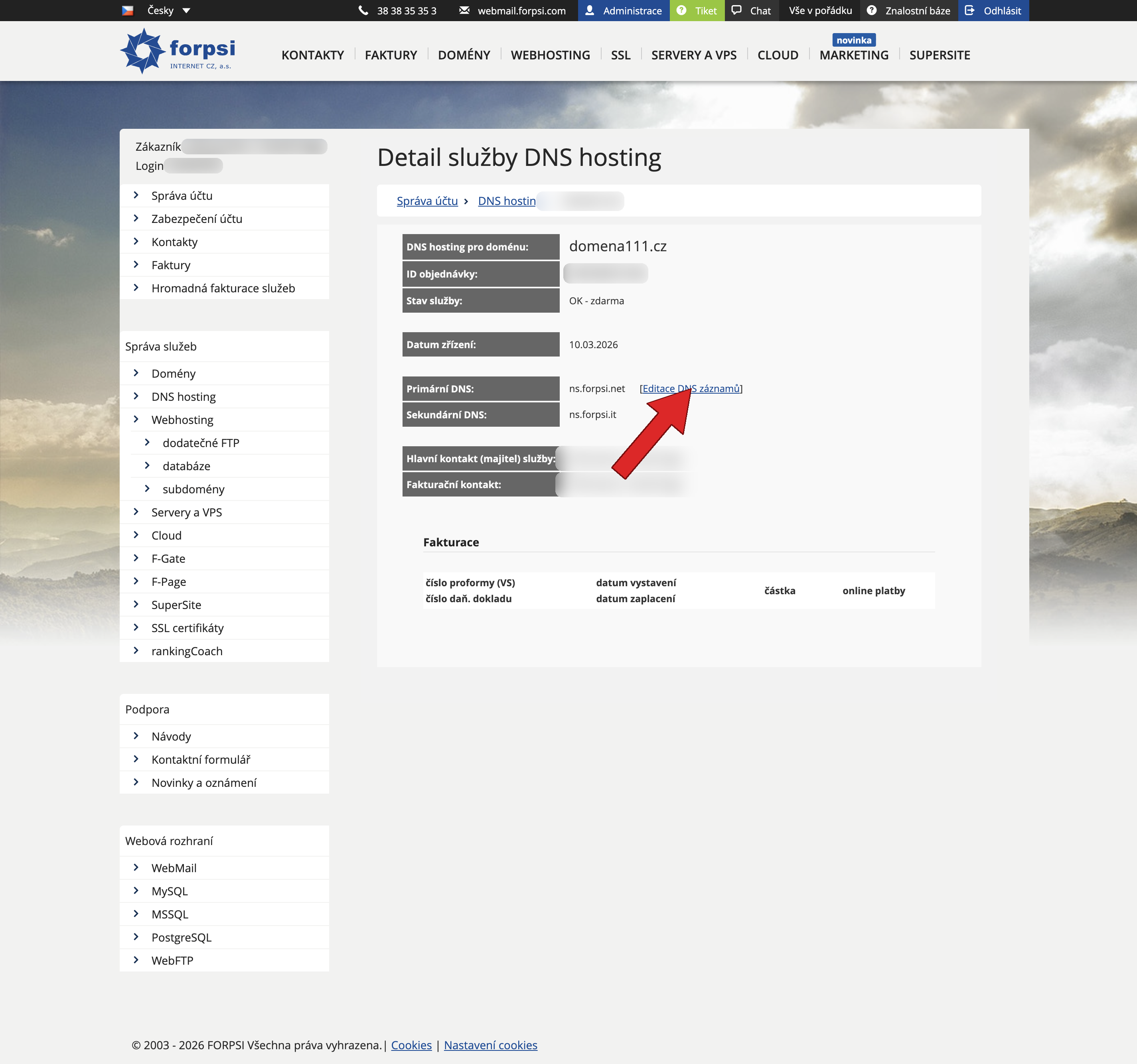 Source: https://admin.forpsi.com/domain-dns/dns-detail.php?id={id}
You will see a form for adding new records and a table of existing ones.
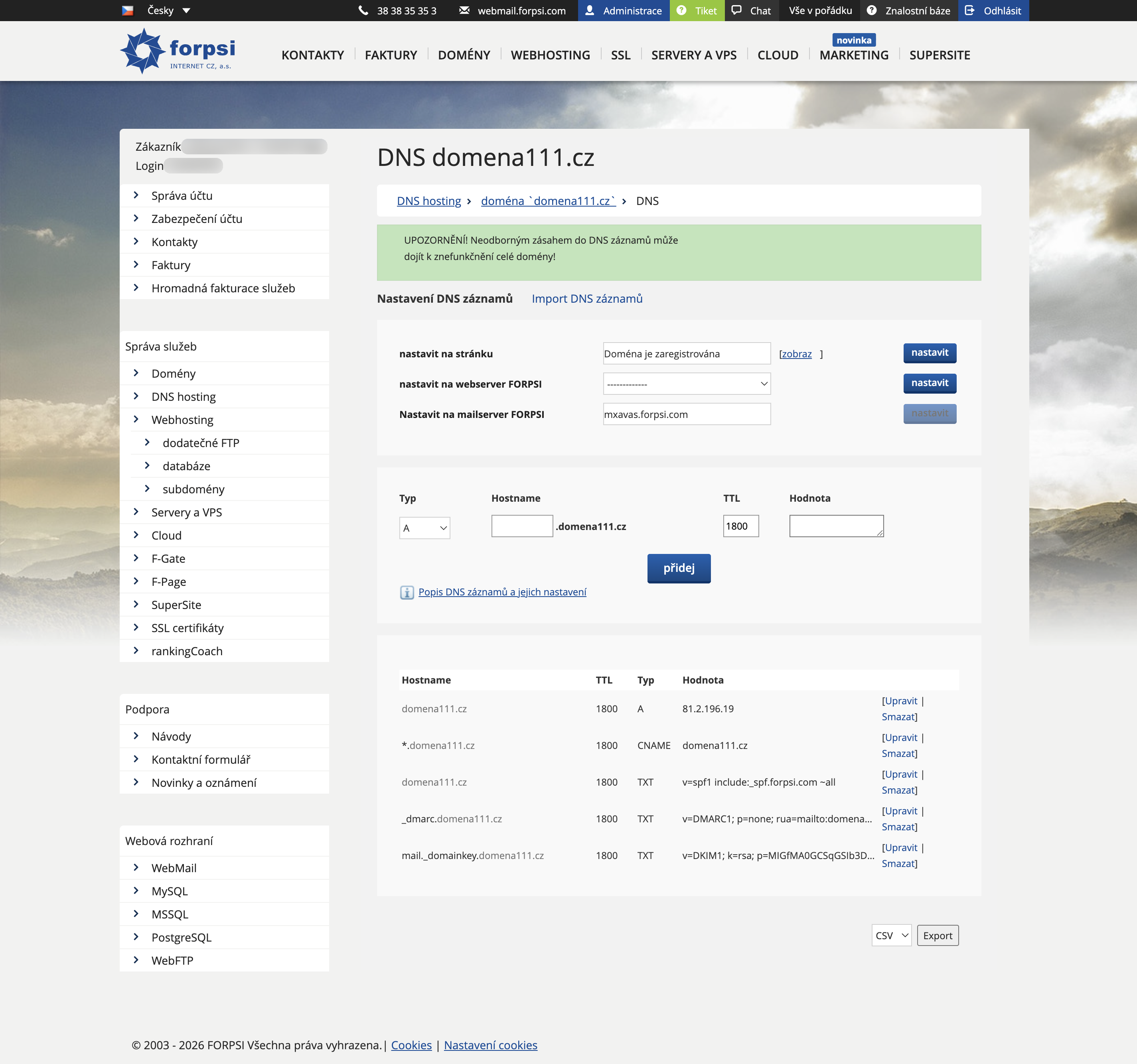 Source: https://admin.forpsi.com/domain-dns/dns-edit.php?id={id}
Check the table — if a TXT record starting with v=spf1 already exists, edit it instead of creating a new one. A domain must have only one SPF record.
Step 4: Create the SPF record
Fill in the form at the top of the page:
| Field | What to enter |
|---|---|
| Type | select TXT |
| Host name | leave empty — SPF belongs on the root domain |
| TTL | default 1800 is fine |
| Value | your SPF record (examples below) |
Not sure how to build the record? Our SPF Generator can help.
If you use FORPSI mail hosting:
v=spf1 include:_spf.forpsi.com ~all
For Google Workspace:
v=spf1 include:_spf.google.com ~all
Combining multiple services (FORPSI + Google Workspace):
v=spf1 include:_spf.forpsi.com include:_spf.google.com ~all
Not sure which include to use? Check our overview of Czech email service providers for the correct values.
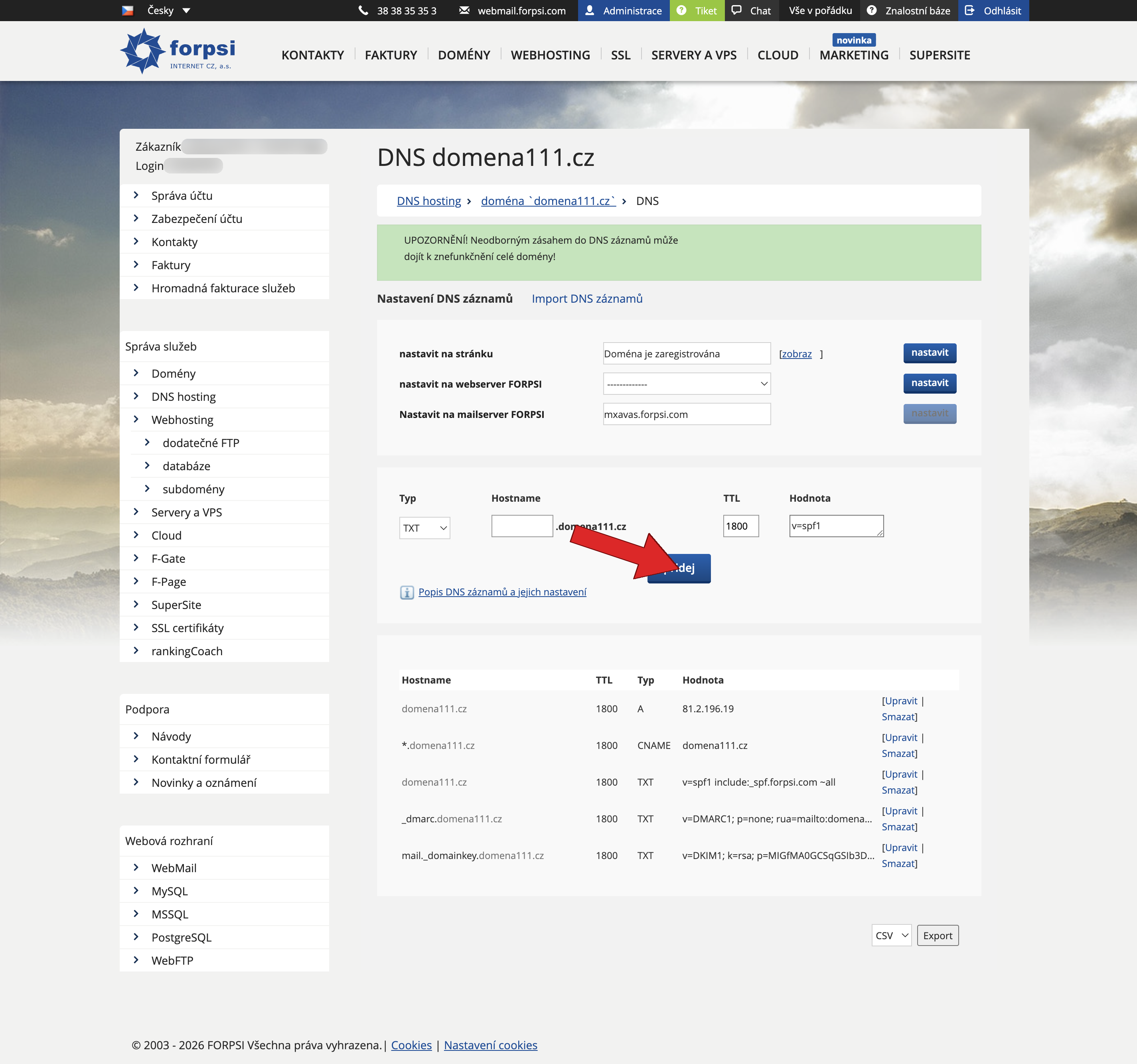 Source: https://admin.forpsi.com/domain-dns/dns-edit.php?id={id}
Click add. At FORPSI, the record is saved and activated immediately.
Step 5: Check the record in the table
After the page reloads, verify that a new row appears in the table with type TXT and your SPF value.
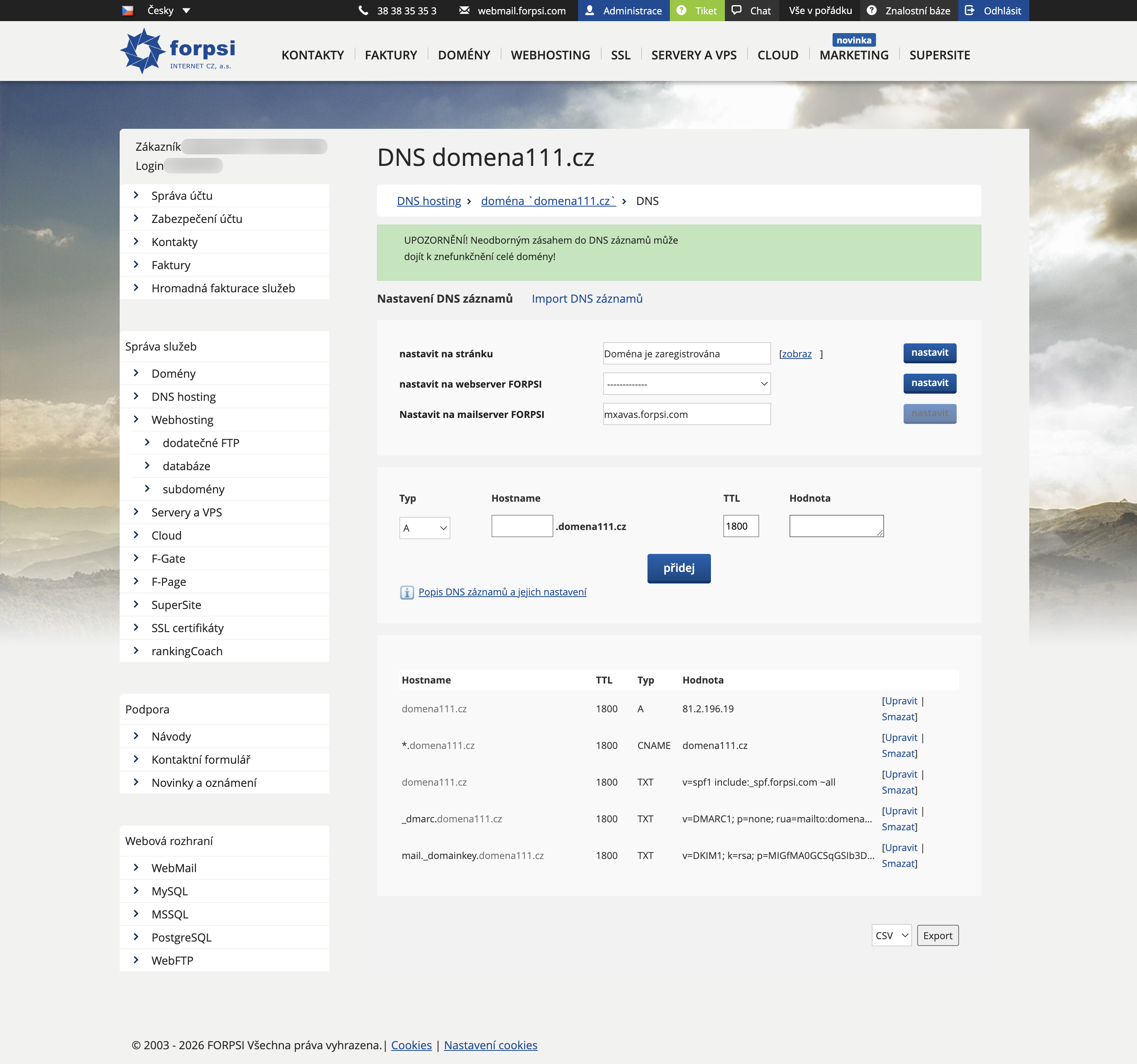 Source: https://admin.forpsi.com/domain-dns/dns-edit.php?id={id}
Step 6: Verify the setup
DNS propagation usually takes up to 30 minutes. Then enter your domain in the SPF analyzer on SPFmonitor — it will check the record syntax, the include tree, and the DNS lookup count.
For details: How to Check Your Domain's SPF Record.
Next steps
SPF is the first part of email authentication. Continue with DKIM and DMARC:


