How to Set Up Email Authentication in WEDOS
What is email authentication
Email authentication is a set of DNS records — SPF, DKIM, and DMARC — that protect your domain from being used to send fraudulent emails. Each record serves a different purpose, and together they form a complete protection. For a detailed overview, see SPF, DKIM, and DMARC — Complete Email Authentication Guide.
You can set up all three records in the WEDOS DNS management. Log in to the WEDOS customer center and click DNS in the top menu.
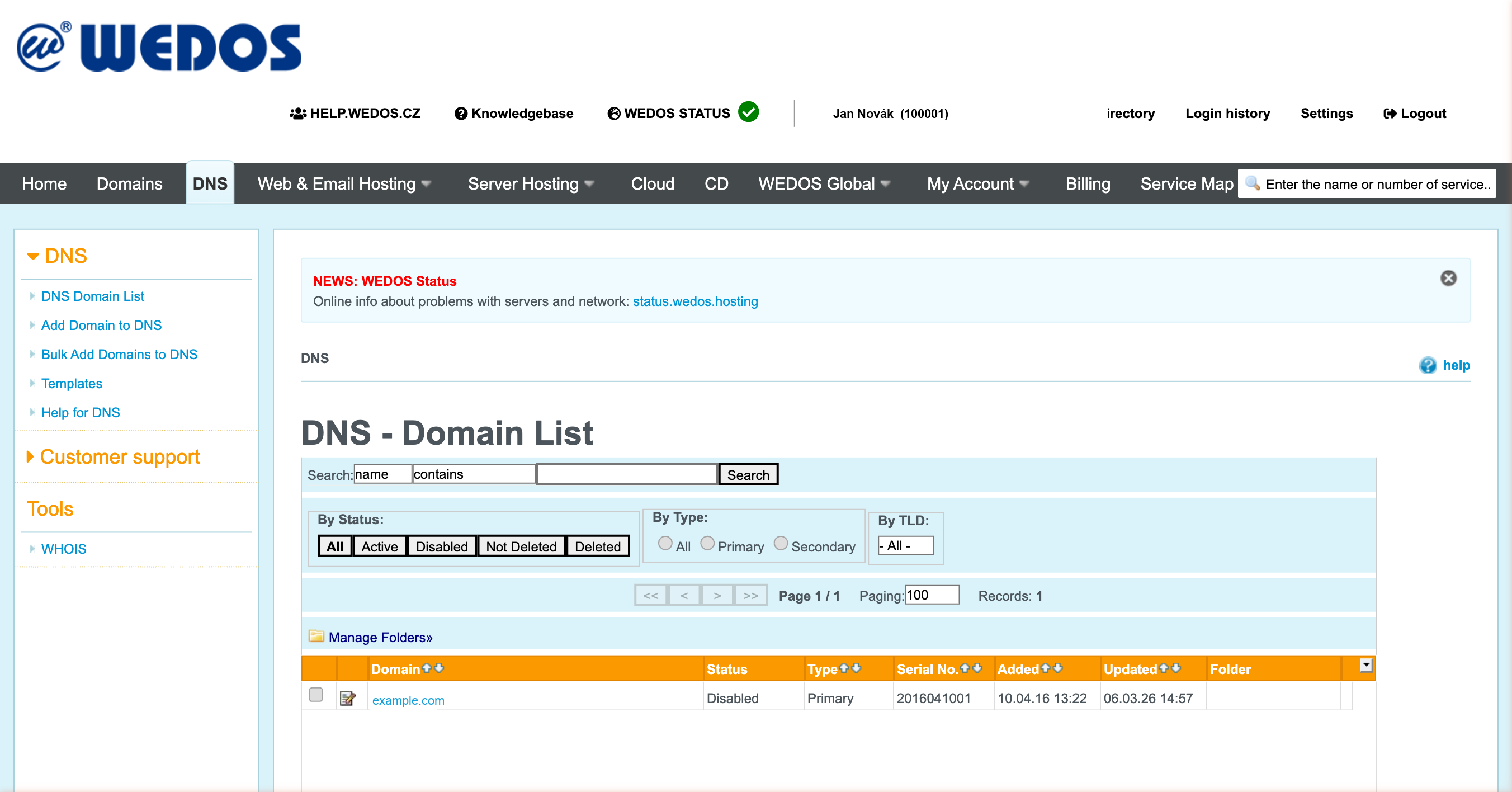 Source: https://client.wedos.com/dns/
Click your domain name, then select DNS Records in the left menu. From there, you will add all three records following the guides below.
| Order | Record | Name | Step-by-step guide |
|---|---|---|---|
| 1. | SPF | (empty — applies to the main domain) | Set up SPF in WEDOS → |
| 2. | DKIM | {selector}._domainkey |
Add DKIM in WEDOS → |
| 3. | DMARC | _dmarc |
Set up DMARC in WEDOS → |
SPF record
An SPF record specifies which servers are allowed to send emails on behalf of your domain. In WEDOS, you add it as a TXT record with an empty name — it applies to the main domain. The record value depends on which services you use to send emails (WEDOS Mail, Google Workspace, Microsoft 365, etc.).
Full guide with screenshots: How to Set Up an SPF Record in WEDOS
If you need to figure out what value to enter, read What Is an SPF Record and How to Create an SPF Record.
DKIM record
A DKIM record contains a public key that recipients use to verify that an email was not altered in transit. In WEDOS, you add it as a TXT record with the name {selector}._domainkey. You get the selector and public key from your email service settings (Google Workspace, Microsoft 365, WEDOS Mail, etc.).
Full guide with screenshots: How to Add a DKIM Record to DNS in WEDOS
If you are unsure where to find the selector and key, read What Is DKIM and How Does It Work and How to Set Up DKIM.
DMARC record
A DMARC record tells recipients what to do with emails that fail SPF and DKIM checks — whether to deliver them, send them to spam, or reject them. In WEDOS, you add it as a TXT record with the name _dmarc. We recommend setting it up after SPF and DKIM are in place.
Full guide with screenshots: How to Set Up a DMARC Record in WEDOS
To learn more about DMARC policies and reporting, read What Is DMARC and How Does It Work.
Next steps
Once all three records are in place, verify the complete configuration of your domain. Enter your domain in the SPFmonitor domain analysis tool — it checks SPF, DKIM, and DMARC at once and flags any issues.
If you send emails from multiple services, verify the settings for each one. The guide on setting up SPF, DKIM and DMARC at Czech hosting providers can help you find the correct values.


